
Help
Before Purchase
I appreciate your desire to preview the forms. Unfortunately, I can’t send them because the forms are digital. Once you have them – you have them. In an attempt to address this issue, we briefly considered providing thumbnail images but thumbnails, by nature, are small to prevent copyright infringement. Plus, the templates are information dense, making a thumbnail extremely difficult to read and therefore useless. They are dense because the forms (except for the Diagnostic Summary) are developed to fit on one page. The one-page design allows you to see all the information without having to scroll. It’s less wear and tear on your eyes, easier to find information and to reference a section you need to help create the Golden Thread. I’m sure this is not the answer you want but it’s an attempt to be transparent with our thinking so you understand we’ve considered this issue seriously. Perhaps reading some of the testimonials will be helpful?
Yes, these forms were created to meet all Medicare standards. Medicare standards are the most stringent. If you can pass a Medicare audit, you should be able to pass any commercial insurance audit.
Documentation Wizard progress notes were created using the SOAP note model. However, they provide much clearer guidance than a standard SOAP Note. For example, a standard SOAP note has a narrative section for, “Clinical Content of Session,” which leaves a lot room for confusion and encourages long narratives in the hopes you capture the information wanted. The Documentation Wizard, progress note breaks down and categorizes all the clinical information so you are cued to include what you need and leave out what you don’t.
Medicaid insurance is state run. Some Medicaid companies may have requirements in addition to Medicare’s requirements. Medicaid insurance companies seem to be particularly concerned about documenting specific issues related to children. Please check your state regulations.
These forms are provided in three types. All are compatible with a Mac.
The forms in WORD format require having an updated copy of Microsoft WORD. Microsoft WORD is the standard in the word processing industry and the Documentation Wizard forms were created using Microsoft WORD. You can buy a yearly subscription or you can buy a program to install in your computer. Get Microsoft WORD.
The forms in WORD format are not supported using the forms on PAGES, OPEN OFFICE, WORD PERFECT or any other word processing software. If you have an outdated copy of WORD, you may find updating to the latest version will be helpful. Get Microsoft WORD
The forms in PDF format require you to have at least Adobe Acrobat READER on your computer. The PDF fillable forms may NOT work well in a browser. The best method is to open them in Adobe Acrobat READER. Adobe Acrobat READER is a FREE program (Adobe Acrobat Pro works as well, but it is NOT free). Get Adobe Acrobat READER
The answer depends on the practice management system you use. Some systems easily allow you to upload Documentation Wizard forms. Other do not. I am not familiar with them all so it’s best to consult with the customer service department associated with your system.
Yes, Simple Practice makes this possible. If you’d like help with this process, consider contacting My Solution Services. www.mysolutionservices.com. I’ve referred quite a few clinicians to them with a 2-thumbs up approval rating. You can also learn more from the interview on my blog.
Yes! Please check to see if your practice management system can accommodate this need. You can use the forms in any way that suits your practice – except to give them to other clinicians. These are copyrighted forms with a single use agreement that you sign when making your purchase.
These forms are designed to be used across populations.
Definitely. When used as intended, they provide the information needed without violating client confidentiality.
Yes. These forms contain a mental status exam. Make sure you indicate that your elderly client is “engaged” and able to effectively participate in therapy. Being engaged in tx is a requirement.
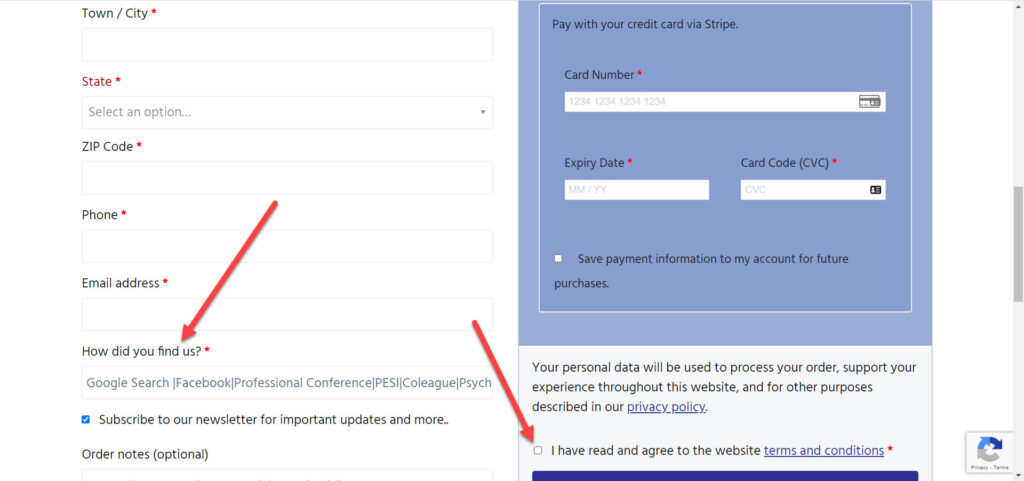
First, right after you enter your EMAIL ADDRESS there is a request for HOW YOU FOUND US? Just click on that section and select the item that best tells you where you first heard about Documentation Wizard.
The second place is below where you added your credit card information. There is a box you will need to check to accept our terms and conditions (and hopefully after you have read them).
Account & Access
- Your password was sent to you to the email address you used to make your purchase. To reset your password, go to:https://documentationwizard.com/my-account/
- Toward the bottom, click on the link
LOST YOUR PASSWORD? - Enter the email address you used to make your purchase. Then click on RESET PASSWORD
- An email will be sent to the email address you entered. Be patient. It may take a few minutes or more. Be sure to check your junk mail for the email, too.
- Follow the directions in the email to reset your password.
Please be patient. If you attempted to login with the wrong username or password multiple times OR attempted to retrieve a password with the wrong email multiple times, Documentation Wizard may block you for a certain amount of time. It varies based on the current hacking threats we may be dealing with. It is stunning the number of times our website is attacked on a daily basis. We are not unique in this – most websites are reqularly attacked by hackers.
Please send an email to support@documentationwizard.com and we’ll be happy to unblock you to try again. If needed we can manually reset your password as well.
Again, thank you for your patience as we do our best to protect our website and everyone’s data.
OPTION 1:
The easiest way is to download them immediately following your purchase. Please note that is your purchased forms that include personalization, you’ll receive your UNIQUE download link in a SEPARATE EMAIL shortly after purchase. Be sure to check your spam/junkmail for this email.
OPTION 2:
An email will be sent to the email address used to purchase your master forms. The email will contain a link to your download page.
OPTION 3:
Go to: https://documentationwizard.com/my-account
Enter the email address used to purchase the forms and the password that was emailed after your purchase. If you do NOT know your password, click on LOST YOUR PASSWORD? to reset it.
Once you access the MY ACCOUNT dashboard, click on DOWNLOADS on the left side navigation
OPTION 4:
If you are unable to retrieve your master forms with any of the previous methods, please CONTACT Beth. Please include the details of what happened when attempting the previous options so we can help you as quickly as possible.
Using your Forms
The forms in WORD format require having an updated copy of Microsoft WORD. Microsoft WORD is the standard in the word processing industry and the Documentation Wizard forms were created using Microsoft WORD. You can buy a yearly subscription or you can buy a program to install in your computer. Get Microsoft WORD.
The free online version of WORD does not support checkboxes so it will not work with the forms. You will need the WORD program on your device, but you can save your subsequent form files in the cloud to access them from different devices. Be sure to use a cloud platform that is HIPAA approved.
The WORD App (not the free online version) will support your Documentation Wizard Forms. This allows the user to open and work with the forms on an iPad or other mobile device.
The forms in WORD format are not supported using the forms on PAGES, OPEN OFFICE, WORD PERFECT or any other word processing software. If you have an outdated copy of WORD, you may find updating to the latest version will be helpful. Get Microsoft WORD
In order for access PDFs we recommend you open them in either:
- ADOBE ACROBAT READER (free)
or - ADOBE ACROBAT (paid).
ADOBE ACROBAT READER is a free program available for PC or Mac. Most people already have it on their computer, but you may have to access the latest version to ensure your fillable PDFs and standard PDFs work at their best.
To download the latest version, you’ll want to go to
Do a search for READER and download and install the 2025 version for your PC or Mac.
—————————————————————————————————-
Please note: In many cases when you click on the file to open it, it may open in your browser window
(browser = safari or microsoft edge or firefox or chrome)
Browsers no longer support fillable PDFs so they may not work as expected. Please open forms within ADOBE ACROBAT READER.
Not everyone uses a laptop or desktop for their session notes and more. If you’d like to use your iPad, you can.
For fillable PDF forms, you’ll need
- ADOBE READER (download for FREE at Apple App Store).
- Microsoft WORD app (download at Apple App Store – Microsoft 365 required)
- Forms are not designed for use with Pages
View the following tutorial for step by step to use forms on your iPad.
In order for access PDFs we recommend you open them in either:
- ADOBE ACROBAT READER (free)
or - ADOBE ACROBAT (paid).
ADOBE ACROBAT READER is a free program available for PC or Mac. Most people already have it on their computer, but you may have to access the latest version to ensure your fillable PDFs and standard PDFs work at their best.
To download the latest version, you’ll want to go to
Do a search for READER and download and install the 2025 version for your PC or Mac.
—————————————————————————————————-
Please note: In many cases when you click on the file to open it, it may open in your browser window
(browser = safari or microsoft edge or firefox or chrome)
Browsers no longer support fillable PDFs so they may not work as expected. Please open forms within ADOBE ACROBAT READER.
This field is formatted to be a DIGITAL SIGNATURE. Adobe Acrobat Reader used a unique type of signature that locks your document when signed. Here is a quick video describing how to set up your digital signature.
Alternatively, you can simply print out the form and sign with a pen in that open field.
Please consider clicking on SAVE AS to save the current file BEFORE the signature is added so you can make additions for the next week.
- Right mouse click on the signature field
- Select SIGN DOCUMENT or Certify with Visible Signature
- Click the FILE SAVE.
The Date Fields in the Fillable PDFs are formatted to MM/DD/YY throughout the forms. In most areas, there is a limited amount of space so keeping the date to the shorter MM/DD/YY made sense.
Yes. The Word Docs are formatted using “tables” so it’s a pretty simple matter of copying a problem area and pasting your 3rd one into the document.
There are no fatal problems. If you make a mistake, use the back arrow found in the upper left-hand corner of the Word Docs. You can also download the forms again so you never have to worry about making an irreversible mistake.
FYI — the fillable PDFs come with 3 Problem Areas. So if you need 3, you might opt for using the fillable PDFs.
